The Best Way to Export Slack Conversations: Excel, Any Chat, Beyond the 90-Day Limit
Slack's own export is admin-only and hands you a ZIP of JSON. Back up your Slack to your computer instead, then export any conversation to Excel and read it with a double-click, even after 90 days.
The Empowia Team

Quick answer
Slack's built-in export is for workspace owners and admins only, and it produces a ZIP of JSON files most people can't read. To export your own conversations in a format you can open, back up your Slack with Empowia for Slack, then go to Settings → Export, choose what to export, a time range and a format (Excel, CSV or JSON), and click Export…. The file lands in your Downloads folder and opens in Excel. Your backup stays on your computer, so what you've saved doesn't vanish after Slack's 90 days.
People save their Slack history for all kinds of reasons.
You're leaving a job and want a copy of the conversations you were part of, as far as your company allows. You're on a free workspace, where messages older than 90 days are already hidden and anything over a year old gets deleted for good. You want a record of who agreed to what, and why a call was made. Or you just need to show a conversation to someone who isn't on Slack.
Saving it isn't the hard part. The hard part comes the day you actually need it: will the file open? And once it does, can you read it?
Slack can export, but not for you to read
Slack does have an export. It just comes with a few gates, and Slack's help center spells them out:
- Only workspace owners and admins can run it. Regular members don't get an export at all.
- On the Free and Pro plans it covers public channels only. Private channels and DMs need a higher plan, and even then an application and an approval.
- Files come as links, not files. On the free plan, only links from the last 90 days.
Get past all that and what you're handed still isn't meant for people. It's a ZIP of JSON files, split by conversation and by date. Open one and names have become IDs like U07QK2M8H1R, and times are numbers like 1781259000.000015.
Everything's in there. You just can't read it.
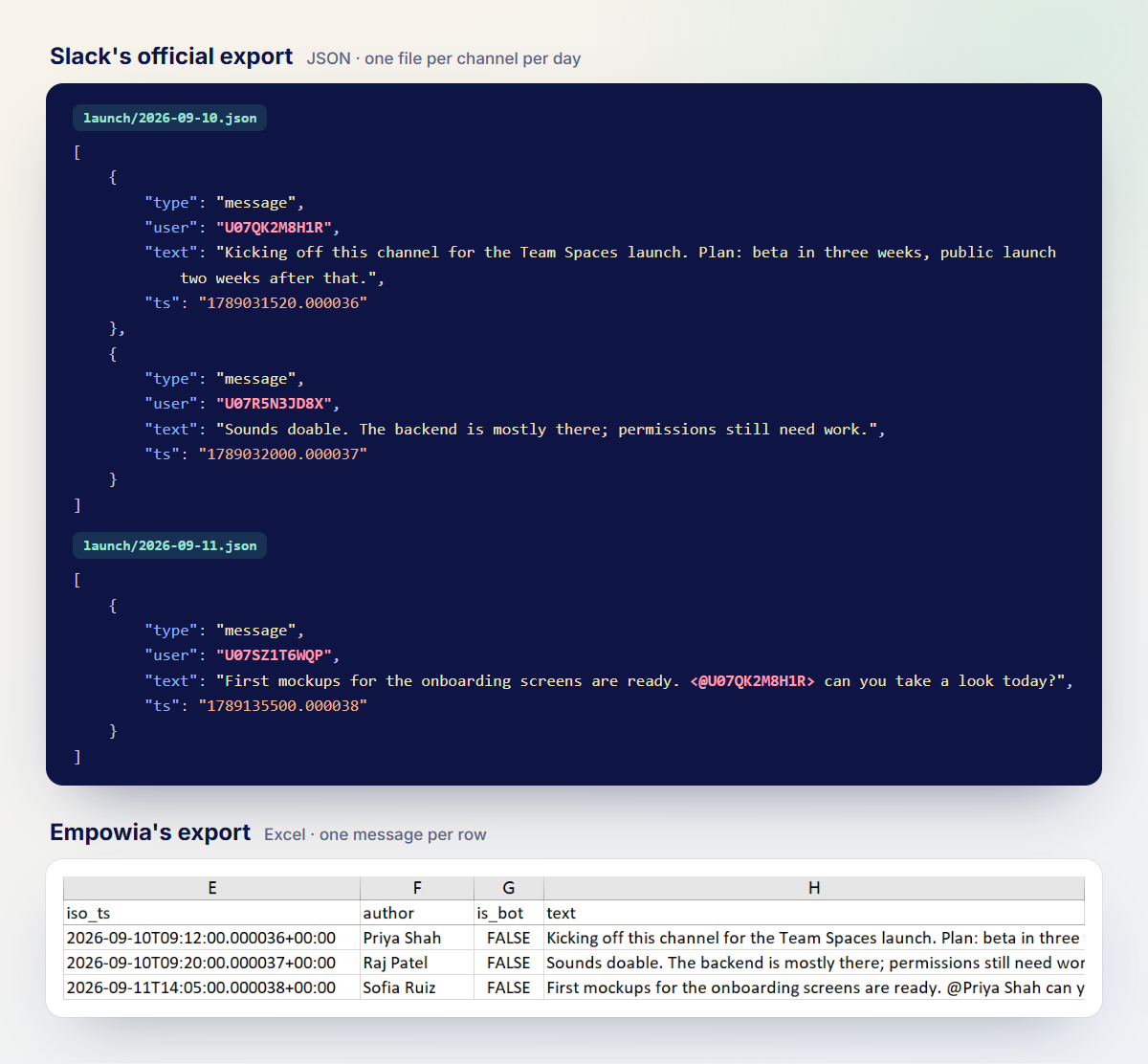
Already sitting on one of those ZIPs? Here's how to open and read it, step by step.
a readable format is one you already use
To me, an export passes one test: you open it and you can read it. No special viewer, no script from a friend.
Empowia for Slack backs up your Slack to your computer, private channels, DMs and group DMs included, on Windows and on a Mac with Apple silicon. When it comes to exporting, that buys you two things.
It keeps your history. The backup lives on your own computer. Slack's free plan hides messages after 90 days and deletes them after a year; the copy on your computer stays put. Leave the workspace, and it's still there. One thing to say up front: the backup starts the day you start using it. Messages Slack had already hidden before then are out of reach for Empowia too.
You can read it. Export to Excel or CSV and the file opens with a double-click: one message per row, with who, when, which channel and what was said, each in its own column. JSON is there too, for anyone who wants to process the data with a program.
Two more things. You don't need an admin: any conversation your own account can see and you've backed up can be exported. And the export runs entirely on your computer, without contacting Slack or any server. If you want the full comparison with Slack's own export, it's in another post.
three steps, all in Settings
Not installed yet? Download Empowia and run a first backup. Then:
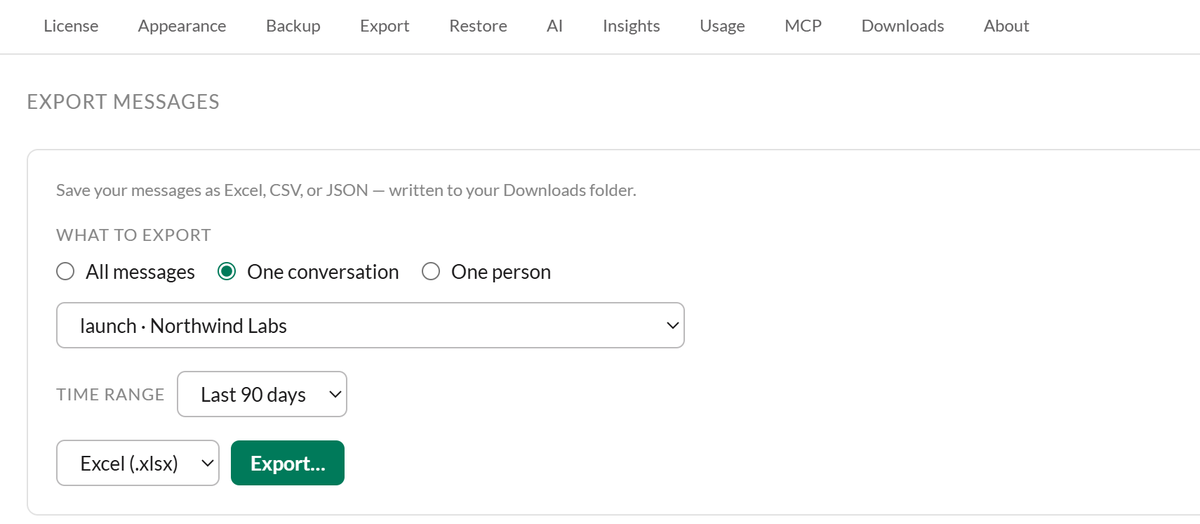
Click Settings at the bottom left, then Export in the Settings menu. The page jumps to Export messages.
Under What to export, choose one:
- All messages: every backed-up message, from every workspace, in one file;
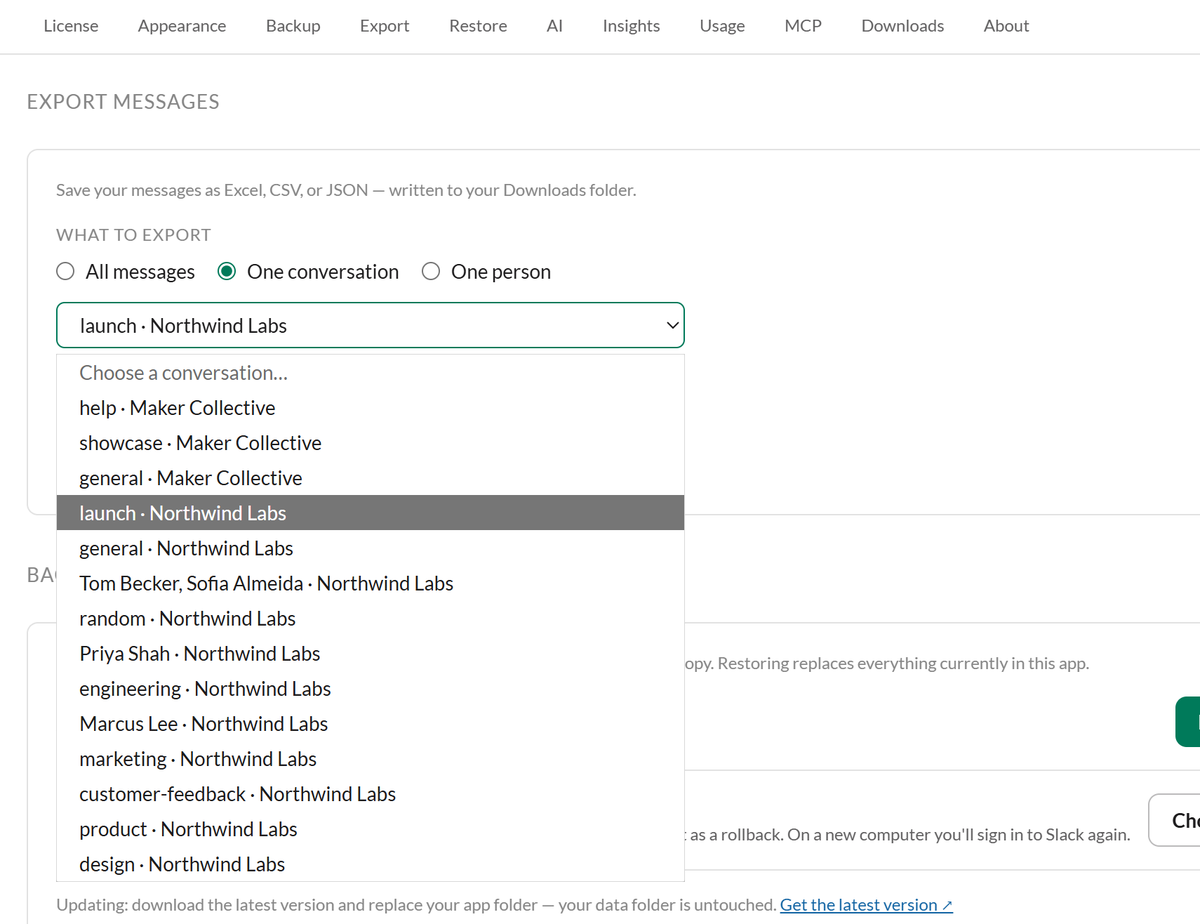
- One conversation: a channel or a DM, picked from Choose a conversation…;
- One person: everything one person wrote across the workspace, picked from Choose a person….
Then set Time range to All time, Last 7 days, Last 30 days or Last 90 days, counted back from the moment you click Export.
Pick Excel (.xlsx), CSV or JSON, and click Export….
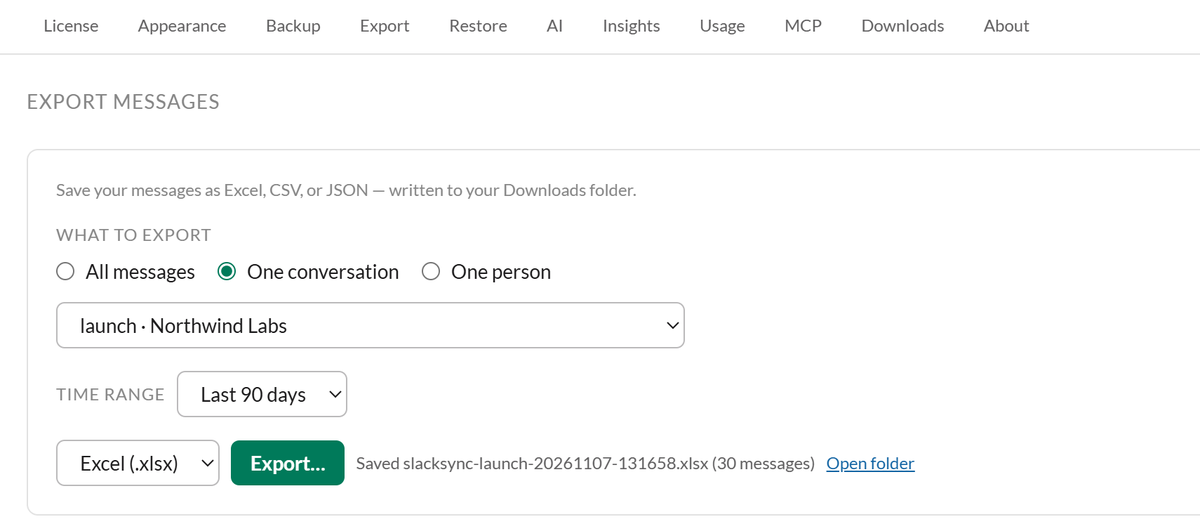
A moment later, "Saved … (N messages)" appears next to the button. The file is in your Downloads folder, and Open folder takes you straight to it. Size isn't an issue either: 20,000 messages to Excel took about two seconds on a desktop PC in our test.
what you see when you open it
Double-click the file and Excel shows a plain table: one message per row, with the header row frozen at the top so it stays in view as you scroll.
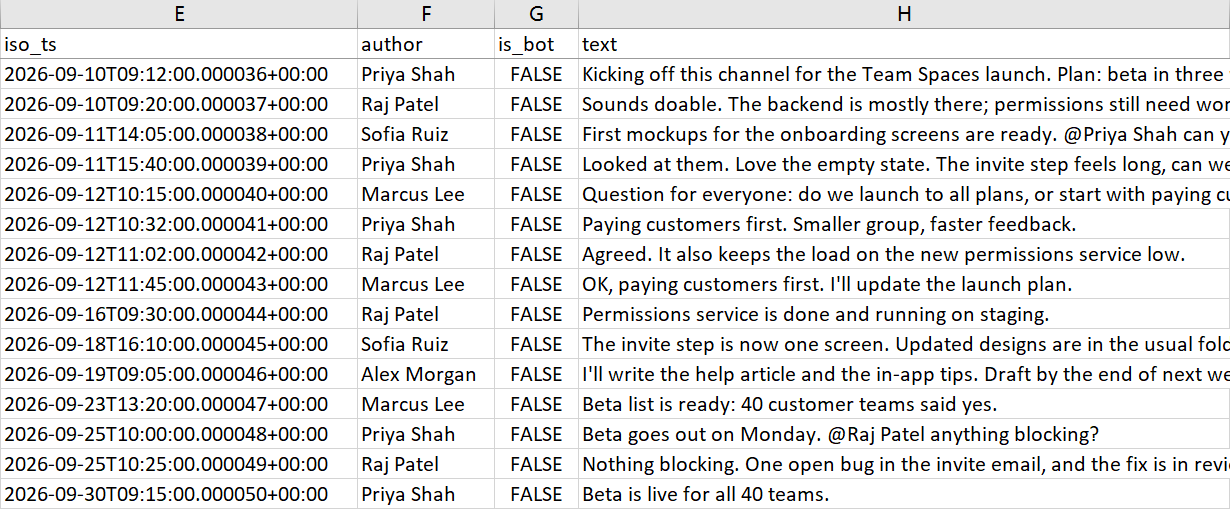
The column names are in English, whatever language the app is in. These are the ones you'll use most:
channel: which channel;author: who said it, by real name;iso_ts: when;text: what was said, with @-mentions already turned into names.
A few things are worth knowing up front:
- Times are in UTC, stored as text. New York is 5 hours behind (4 in summer). The column still sorts in time order, though, and a text filter of "begins with 2026-10" gives you one month (in UTC).
- Links and emoji stay in Slack's raw form, such as
:white_check_mark:. - Thread replies sit in time order among the other messages, not under their parent. To put them back, sort by
thread_ts, then byslack_ts. Each thread then lines up under its first message, but everything outside a thread moves to the bottom. - DMs show as
(im)in thechannelcolumn, without the other person's name. There's more on exporting DMs in a separate post.
Excel, CSV or JSON?
For reading, pick Excel. It's the default.
CSV is for feeding other tools. It's UTF-8 with a BOM, so Chinese or Japanese text doesn't turn into gibberish. On a computer set to French or German regional formats, though, double-clicking a CSV puts everything in a single column. Use the Excel format there, or import the file with Excel's Data → From Text/CSV.
JSON is for programs. Note that it's Empowia's own format, not the format of Slack's export.
beyond the spreadsheet: files, a new computer, a USB stick
The spreadsheet holds text only. No attachments, no reactions.
So where are the files? Open the app's Files page: the attachments Empowia has backed up are all there, and you can filter them by type and workspace. On the Windows portable version you can also find them in the data folder next to the program.
Moving to a new computer? Then don't stop at a spreadsheet. Back up & restore in Settings exports a full backup: a single .zip with your messages, files and settings. Import it on the new computer, reconnect Slack, and nothing is missing. The steps are in the guide.
The Windows portable version has an even simpler option: keep the whole program on a USB stick. The program and all your history live in that one folder. Unplug it and take it with you.
Saving your history was never the point. Being able to open it and read it, the day you need it, is.
FAQ
Can I export Slack conversations without being an admin?
Not with Slack's built-in export, which is for workspace owners and admins. With Empowia for Slack you can: any channel, DM or group DM your own account can see, once it's backed up to your computer, exports to Excel, CSV or JSON.
I already have Slack's export ZIP. Can I turn it into Excel?
Empowia doesn't import Slack's official ZIP; it backs up directly from the Slack you're signed into. To open and read the ZIP you already have, see my guide to reading a Slack export ZIP.
Can I export direct messages?
Yes. Under What to export, choose One conversation and pick the DM by the person's name. In the spreadsheet, the channel column shows a DM as (im), without the other person's name.
Can I export just one person's messages?
Yes. One person exports everything that person wrote across the workspace: channels, DMs and group DMs, not only your DM with them.
Can I export Slack messages older than 90 days on the free plan?
Whatever you've backed up stays on your computer past 90 days and exports as usual. Messages Slack had already hidden before you started backing up can't be recovered.
Are files and reactions exported too?
No, the spreadsheet holds text only. Attachments are on the app's Files page, where you can filter them by type and workspace. On the Windows portable version you can also find them in the data folder next to the program.
Can I still export after leaving a workspace? Is anything uploaded?
Yes, you can still export: the backup is on your computer, and leaving the workspace doesn't affect it. And nothing is uploaded: the export runs entirely on your computer, without contacting Slack or any server.
How do I take all my Slack history to a new computer?
In Settings, Back up & restore exports a full backup: a single .zip with your messages, files and settings. Import it on the new computer and reconnect Slack. On Windows, the portable version can also live on a USB stick, so the program and your history travel together.
Comments
Loading comments…