Alles, was Sie mit Empowia for Slack tun können
Installieren Sie die App, verbinden Sie Slack und verwandeln Sie Ihre Nachrichten in durchsuchbare Aufgaben, Entscheidungen und Links – alles auf Ihrem eigenen Computer, ob Windows oder Mac. Nichts verlässt Ihren Rechner.
- Windows & macOS
- 100 % lokal
- Kein Konto erforderlich
Store oder Portable – gleiche App, gleiche Funktionen
Es gibt zwei Möglichkeiten, Empowia zu nutzen. Die App und alle Funktionen sind identisch – sie unterscheiden sich nur darin, wie sie installiert wird, wie Updates erfolgen und wo Ihre Daten gespeichert werden.
| Microsoft Store | Portable (.zip) | |
|---|---|---|
| Installation | Mit einem Klick aus dem Store | ZIP-Datei herunterladen, entpacken, starten – kein Installer, keine Admin-Rechte erforderlich |
| Meldung beim ersten Start | Keine (von Microsoft signiert) | Einmalig Windows SmartScreen → Weitere Informationen → Trotzdem ausführen |
| Updates | Automatisch im Hintergrund | Manuell – neue ZIP-Datei herunterladen |
| Speicherort der Daten | Ein geschützter, von Windows verwalteter App-Ordner | Ein Datenordner neben der .exe – zieht mit dem Ordner um |
| Ideal für | Die meisten Nutzer – am einfachsten, automatische Updates | Gesperrte oder Offline-PCs, USB-Sticks, Power-User |
Sie können die Edition später wechseln, indem Sie ein Backup exportieren und wiederherstellen. Der Kauf der Vollversion ist für beide identisch: Holen Sie sich einen Freischaltcode von unserer Website und fügen Sie ihn ein.
Installation & erster Start
Option A — Microsoft Store
- 1Öffnen Sie den Microsoft Store, suchen Sie nach Empowia for Slack und klicken Sie auf Installieren.
- 2Starten Sie die App über das Startmenü. Es gibt keine Sicherheitswarnung und sie aktualisiert sich automatisch.
Option B — Portable (von unserer Website)
- 1Laden Sie Empowia-Portable.zip herunter und entpacken Sie es an einem beliebigen Ort – in einen Ordner auf Ihrem PC oder auf ein USB-Laufwerk.
- 2Doppelklicken Sie auf Empowia-for-Slack.exe.
- 3Falls Windows einen SmartScreen-Hinweis anzeigt, klicken Sie auf Weitere Informationen → Trotzdem ausführen (nur einmal – Windows merkt sich Ihre Entscheidung).
- 4Alles, was die App erstellt, befindet sich im Unterordner „data“ neben der .exe. Wenn Sie den gesamten Ordner verschieben, zieht Ihr Backup automatisch mit um.
Option C — macOS (Apple Silicon)
- 1Laden Sie Empowia-macOS-arm64.zip herunter (Apple Silicon, M1 oder neuer — eine Intel-Version gibt es noch nicht).
- 2Entpacken Sie sie und ziehen Sie Empowia.app in Ihren Ordner „Programme“.
- 3Öffnen Sie Empowia per Doppelklick. Beim ersten Mal stellt macOS die übliche Frage für aus dem Internet geladene Apps — klicken Sie auf „Öffnen“. (Seit Version 3.2.9 ist Empowia von Apple signiert und notarisiert; ein Sicherheits-Umweg ist nicht mehr nötig.)
Für welche Option Sie sich auch entscheiden: Beim ersten Start von Empowia landen Sie auf der Startseite, wo Sie Ihren ersten Slack-Workspace verbinden.
Einen Slack-Workspace verbinden
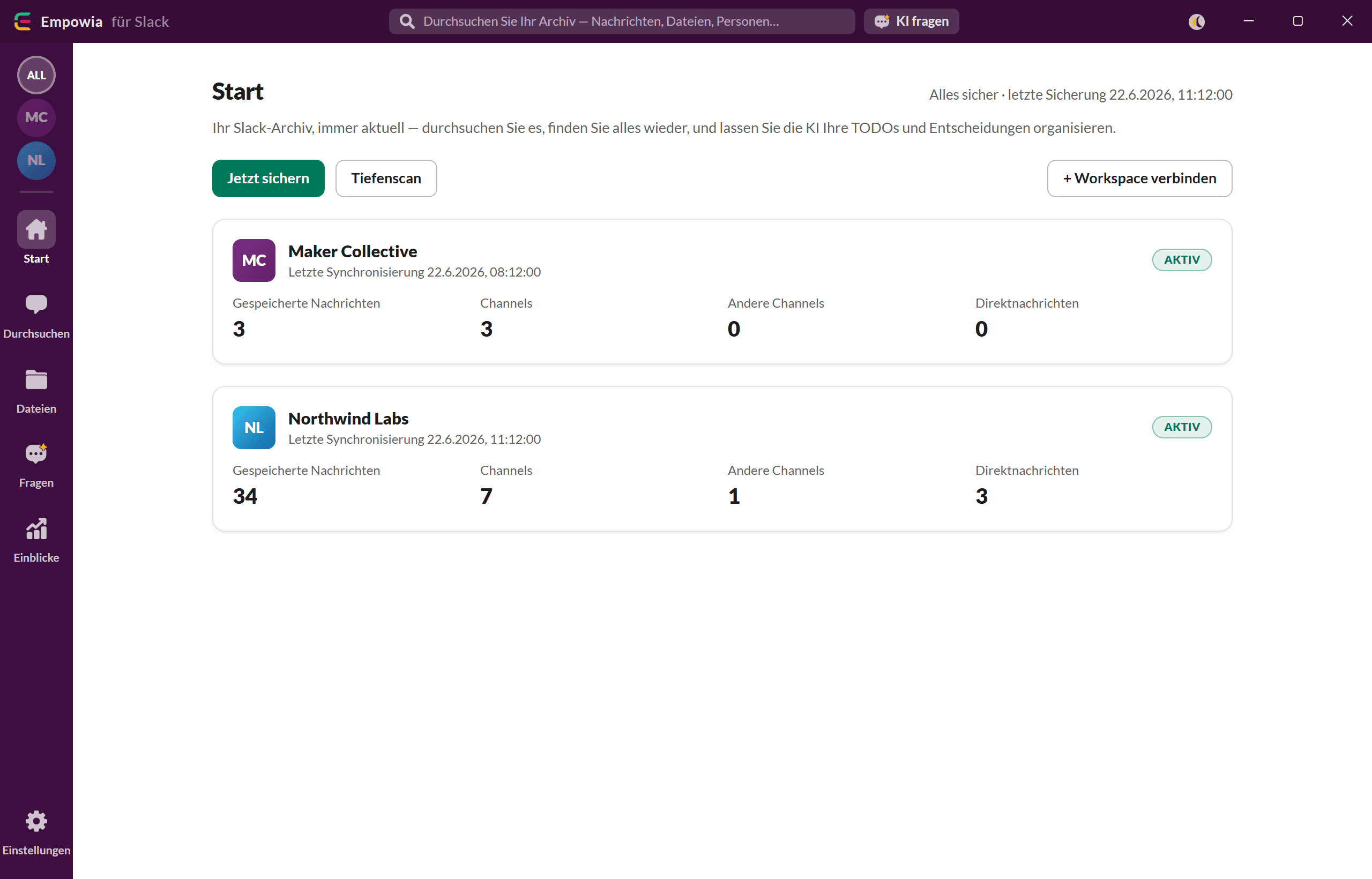
Klicken Sie auf der Startseite auf + Workspace verbinden. Empowia versucht nacheinander drei Wege:
- 1
Slack Desktop (automatisch)
Wenn die Slack-Desktop-App installiert und angemeldet ist, liest Empowia deren Sitzung für Sie aus – ganz ohne Passwort. Wenn Slack Desktop geöffnet ist, sind die Dateien gesperrt. Sie werden dann gebeten, Slack kurz zu beenden und es erneut zu versuchen.
- 2
Browser-Anmeldung
Falls der automatische Weg nicht verfügbar ist, öffnet sich ein Anmeldefenster – loggen Sie sich wie gewohnt bei Slack ein.
- 3
Manuelles Einfügen (fortgeschritten)
Fügen Sie Token und Cookie manuell ein. Standardmäßig ausgeblendet; die meisten Nutzer benötigen dies nie.
Wiederholen Sie dies, um weitere Workspaces zu verbinden. Ihre Slack-Anmeldedaten werden sicher auf Ihrem PC gespeichert, geschützt durch Windows (DPAPI), und ausschließlich für die Kommunikation mit Slack verwendet. Klicken Sie anschließend auf Jetzt sichern oder lassen Sie die automatische Sicherung im Hintergrund laufen (Einstellungen → Allgemein).
Microsoft-Store-Edition: Das automatische Auslesen der Slack-Desktop-Sitzung ist bewusst deaktiviert (die Store-Version verlangt keinen weitreichenden Dateizugriff), daher geht es direkt zur Browser-Anmeldung — der Schritt „Slack beenden“ entfällt.
Kostenlose vs. Vollversion
Die kostenlose Version bietet alle Funktionen, sichert jedoch maximal 20 Unterhaltungen – Kanäle, Direktnachrichten und Gruppen-DMs zählen alle für das Limit von 20.
Die Vollversion aktivieren — offline
Um das Limit aufzuheben, erwerben Sie einen Freischaltcode auf unserer Website. Die Aktivierung erfolgt offline – es wird nichts über das Internet überprüft:
- 1Gehen Sie zur Startseite (oder Einstellungen → Lizenz).
- 2Fügen Sie Ihren Code bei „Haben Sie einen Code? Hier einfügen“ ein und klicken Sie auf Aktivieren.
- 3Die Anzeige ändert sich zu UNBEGRENZT und das Limit wird aufgehoben.
Ihr Freischaltcode wird zusammen mit Ihren Daten gespeichert, sodass er bei einem Backup oder einer Ordnerkopie erhalten bleibt. Ein Code ist nicht an ein bestimmtes Gerät gebunden – Sie können denselben Code auch nach dem Wechsel auf einen neuen Computer aktivieren.
Funktionsübersicht
Hier ist eine Übersicht, was die einzelnen Bereiche der App tun.
Startseite
Workspaces verbinden und verwalten, „Jetzt sichern“ oder „Tiefenscan“ ausführen (liest die letzten Tage erneut ein, um Bearbeitungen, Reaktionen und späte Thread-Antworten zu erfassen).
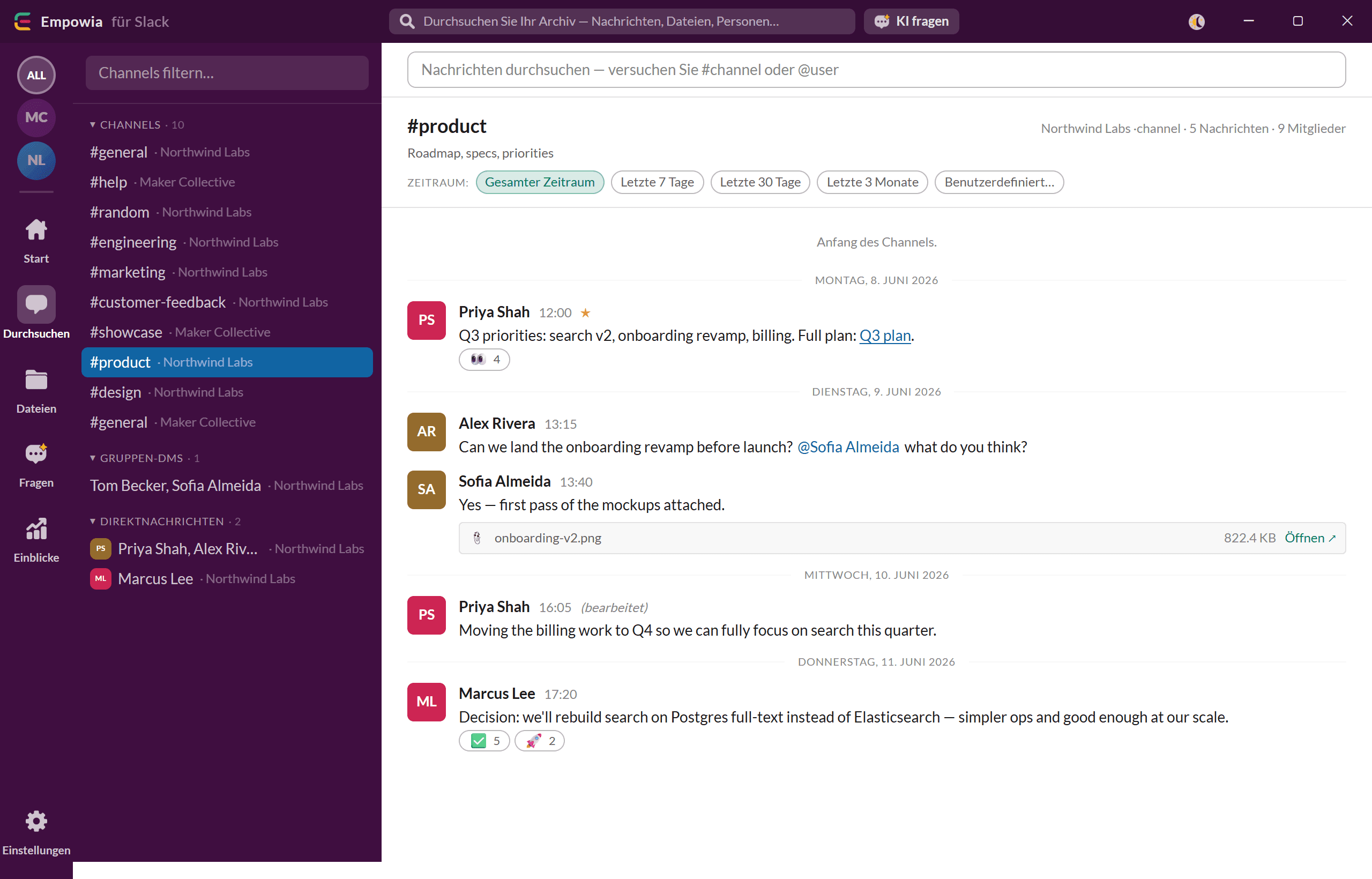
Durchsuchen
Ein Reader im Slack-Stil: Kanäle links, Nachrichten rechts. Volltextsuche über alle Inhalte – geben Sie #kanal oder @benutzer ein, um die Suche einzugrenzen.
Dateien
Eine Galerie aller Anhänge, filterbar nach Typ und Workspace.
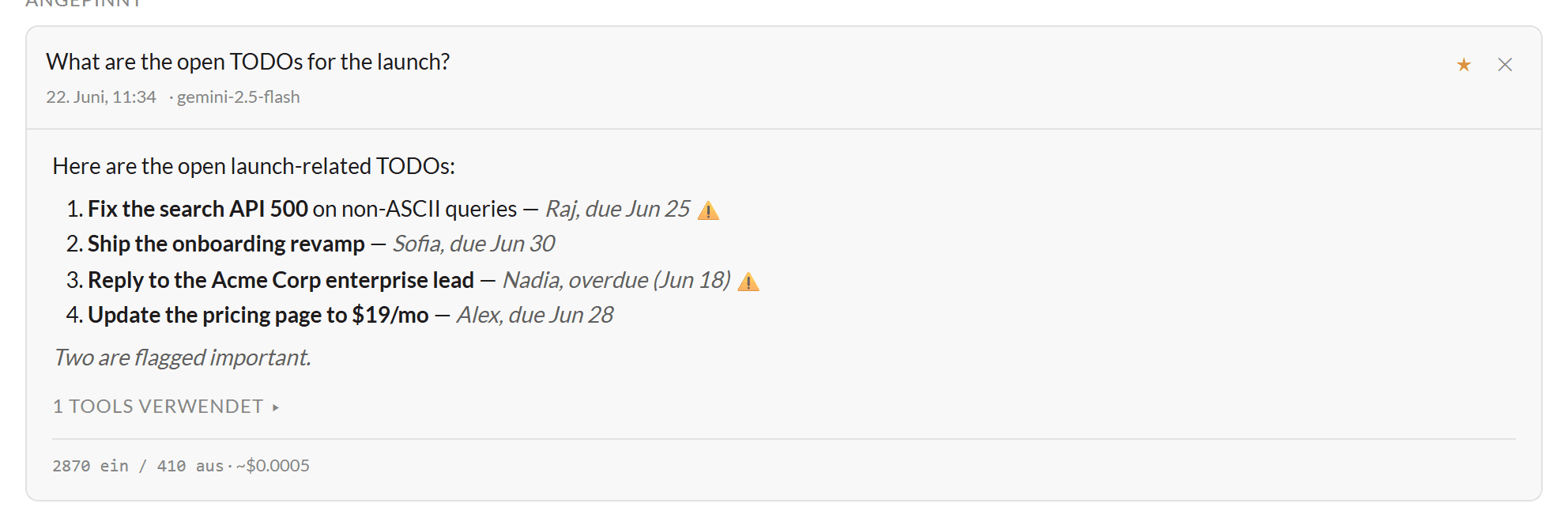
Fragen
Stellen Sie eine Frage in natürlicher Sprache und die KI antwortet aus Ihrem Archiv unter Angabe der Quellkanäle. Heften Sie nützliche Antworten für später an.
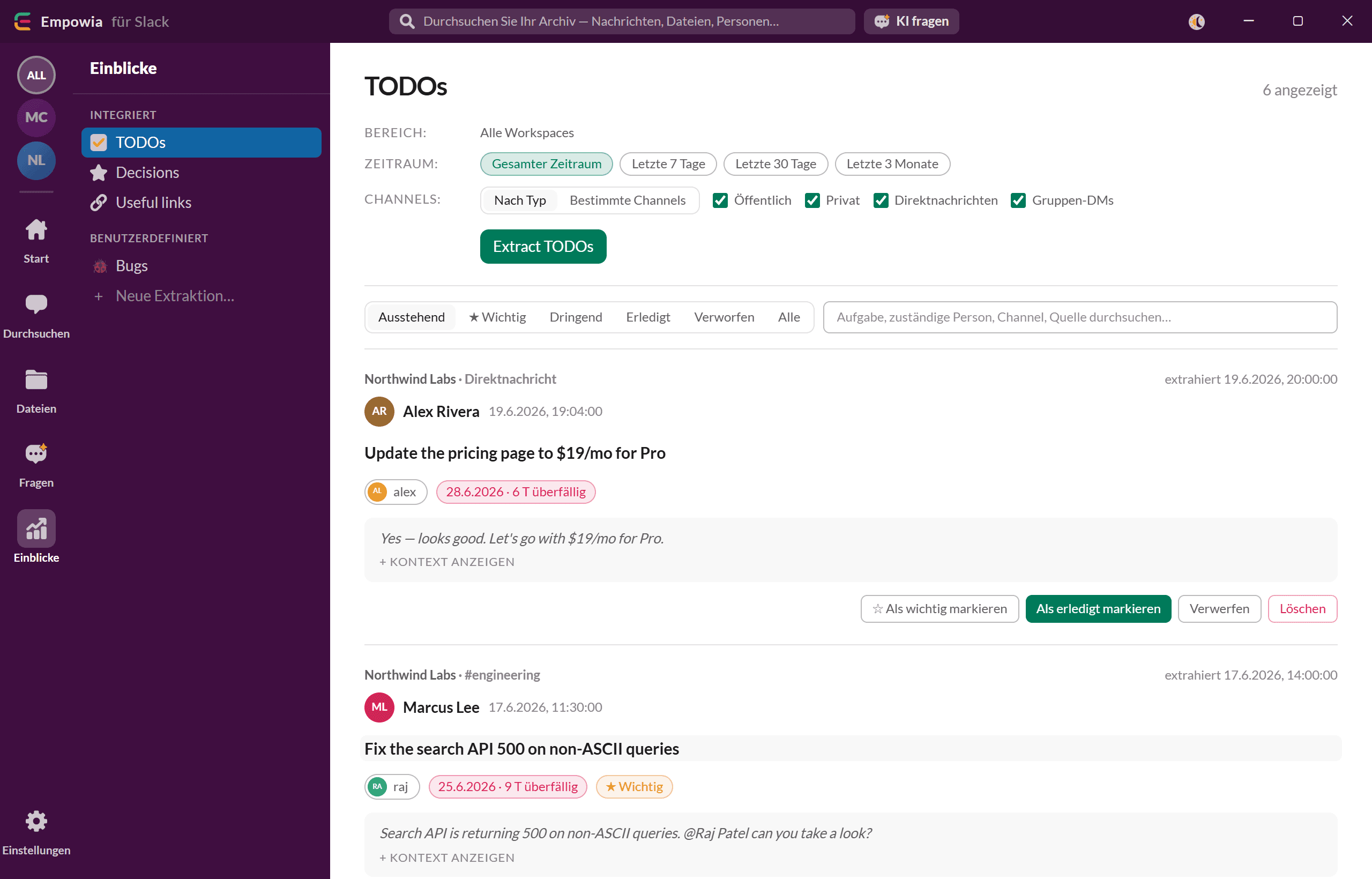
Insights
KI-extrahierte, strukturierte Ansichten: To-dos (Aufgabe, Zugewiesener, Frist, Quelle), Entscheidungen (mit Kontext), nützliche Links und benutzerdefinierte Extraktionen, die Sie selbst definieren.
Einstellungen
Lizenz, Darstellung (Design + Sprache), Backup-Zeitplan, Nachrichten-Export, KI-Anbieter, Automatische Extraktion, Nutzung & Kosten, Datei-Downloads, MCP-Server und Sichern & Wiederherstellen.
KI-Einrichtung — eigenen API-Schlüssel nutzen
Die Funktionen „Fragen“ und „Extraktion“ nutzen Ihren eigenen Anbieter-Schlüssel. Wählen Sie unter Einstellungen → KI-Anbieter einen Anbieter (Google Gemini, OpenAI, Anthropic oder OpenRouter), fügen Sie Ihren API-Schlüssel ein, wählen Sie ein Modell und klicken Sie auf Testen. Google Gemini bietet einen kostenlosen Tarif für die persönliche Nutzung. Sie zahlen immer direkt an Ihren Anbieter; Empowia zeigt Ihre geschätzte Nutzung unter Einstellungen → Nutzung an.
Nutzen Sie Ihr Archiv in Claude Desktop oder Cursor (MCP)
Einstellungen → MCP-Server liefert Ihnen einen Konfigurationsschnipsel, der Ihr gesichertes Archiv jedem MCP-fähigen Client (Claude Desktop, Cursor, …) als schreibgeschützte Tools bereitstellt — Nachrichten durchsuchen; Workspaces, Channels und Dateien auflisten; eine einzelne Nachricht oder einen ganzen Thread abrufen; aktuelle oder themenbezogene Nachrichten sammeln; und Ihre To-dos und Entscheidungen auflisten. Ihre Daten verlassen Ihren Rechner nie, und es funktioniert sowohl mit der Store- als auch der portablen Edition. Bei der Store-Edition funktioniert der Befehl auch nach App-Updates weiter; bei der portablen Edition öffnen Sie nach dem Verschieben des Ordners erneut Einstellungen → MCP-Server und kopieren den aktualisierten Befehl in Ihren Client.
Wo Ihre Daten liegen (und Datenschutz)
Ihre Daten — Nachrichtendatenbank, heruntergeladene Dateien, KI-Insights, Einstellungen, Lizenz und Ihre geschützte Slack-Anmeldung — werden getrennt von der App selbst aufbewahrt, sodass ein Update der App Ihre Daten niemals berührt.
Portabel
Ein Datenordner direkt neben der Empowia-for-Slack.exe. Leicht zu finden, und er zieht mit um, wenn Sie den Ordner verschieben.
Microsoft Store
Ein geschützter, App-spezifischer Speicherort, den Windows für Sie verwaltet — nicht dafür gedacht, manuell geöffnet oder kopiert zu werden. Verwenden Sie Exportieren / Importieren, um ihn zu sichern oder zu verschieben.
Datenschutz
Alles wird lokal verarbeitet und gespeichert. Empowia sendet Ihre Nachrichten nirgendwohin. Der einzige Netzwerkverkehr erfolgt (a) zu Slack, um Ihr Backup abzurufen, und (b) zu Ihrem gewählten KI-Anbieter — nur für Fragen und Extraktionen, und nur, wenn Sie die KI aktivieren und einen Schlüssel hinzufügen.
Wir empfehlen, die portable App auf einer lokalen Festplatte zu halten statt in Dropbox, Google Drive oder OneDrive — ihre aktive Datenbank und die Ordnersynchronisierung vertragen sich nicht immer, sodass eine Synchronisierung mitten im Schreibvorgang gelegentlich Konflikte verursachen kann. Für eine Cloud-Kopie exportieren Sie stattdessen ein Backup als .zip.
Sichern, Wiederherstellen & auf einen neuen Computer umziehen
Die Einstellungen bieten zwei Wege, Ihre Daten herauszuholen, die man leicht verwechselt. Der Export schreibt Ihre Nachrichten in eine Tabelle — Excel, CSV oder JSON — zum Lesen oder Auswerten anderswo. Sichern & Wiederherstellen erstellt eine einzige .zip Ihrer gesamten App — Nachrichten, Dateien, Auswertungen, Einstellungen und Ihren Freischaltcode — um Empowia selbst umzuziehen oder wiederherzustellen. In diesem Abschnitt geht es um Letzteres.
Ein Backup erstellen
Klicken Sie auf Backup exportieren. Empowia schreibt eine einzelne .zip-Datei (Nachrichten, Dateien, Insights, Einstellungen) in Ihren Downloads-Ordner. Bewahren Sie sie als Sicherheitskopie auf oder übertragen Sie sie auf einen anderen Computer.
Ein Backup wiederherstellen
Klicken Sie auf Backup auswählen… und wählen Sie eine .zip-Datei aus. Die Wiederherstellung wird vorbereitet und beim Neustart von Empowia angewendet — klicken Sie zum Abschließen auf Jetzt neu starten. Ihre aktuellen Daten werden als Rollback-Sicherung aufbewahrt, falls Sie es sich anders überlegen.
Umzug auf einen neuen Computer
Für jede Edition empfohlen: Exportieren Sie auf dem alten PC ein Backup, melden Sie sich dann auf dem neuen bei der Ersteinrichtung nicht an (wählen Sie „Vorerst überspringen“), importieren Sie die .zip und verbinden Sie sich erst danach neu — der Import überschreibt alles, was Sie vorher eingerichtet haben, ein Anmelden vor dem Import ist also vergebliche Mühe. Auf derselben Maschine (etwa beim Aktualisieren der portablen Version) können Sie stattdessen einfach den ganzen App-Ordner kopieren, denn er enthält Ihre Daten bereits.
Umzug auf einen neuen Computer
Ihr Freischaltcode reist in jedem Backup mit und funktioniert weiter — er ist offline und an keine Maschine gebunden. Ihre Slack-Anmeldung und Ihr KI-Schlüssel dagegen sind verschlüsselt an das ursprüngliche Windows-Konto gebunden (DPAPI): auf demselben PC (etwa beim Aktualisieren der portablen Version) kommen sie automatisch zurück, auf einem neuen Computer verbinden Sie Slack neu und geben Ihren KI-Schlüssel einmal erneut ein. Das erneute Synchronisieren holt nur, was noch bei Slack liegt, verschieben Sie also immer die Daten — abgelaufene Nachrichten existieren nur in Ihrem Backup.
Die App aktualisieren
Microsoft Store
Updates installieren sich automatisch im Hintergrund — nichts zu tun. Ihr Archiv, Ihr Freischaltcode und Ihre Slack-Verbindungen bleiben erhalten.
Portable (von unserer Website)
- 1Laden Sie die neue Empowia-Portable.zip herunter und entpacken Sie sie in einen neuen Ordner — ein portables Update ist ein frischer Ordner, kein Patch am selben Ort.
- 2Nehmen Sie Ihre Daten mit: Kopieren Sie Ihren alten data-Ordner in den neuen Ordner (oder verwenden Sie in der alten App Einstellungen → Sichern & Wiederherstellen → Exportieren und dann Importieren in der neuen).
- 3Starten Sie die neue Empowia-for-Slack.exe. Auf demselben Computer funktionieren Ihre Slack-Anmeldung und Ihr Freischaltcode weiterhin — nichts neu zu verbinden oder einzugeben — und Ihre Datenbank wird beim ersten Start automatisch aktualisiert.
Nehmen Sie Ihre Daten mit
Ein frisch entpackter Ordner ist leer, überspringen Sie das Übertragen Ihrer Daten also nicht. Behalten Sie den alten Ordner, bis der neue nachweislich alles enthält.
Empowia sucht nie von selbst nach Updates — nichts wird nach Hause telefoniert. Holen Sie sich die neueste Version bei Bedarf von der Download-Seite.
Fehlerbehebung & FAQ
„Der Computer wurde durch Windows geschützt“, wenn ich die App öffne.
Dies betrifft nur den portablen Download (er ist nicht code-signiert). Klicken Sie auf Weitere Informationen → Trotzdem ausführen (einmalig – Windows merkt sich das). Die Microsoft Store-Edition ist von Microsoft signiert und zeigt dies nie an.
Beim Verbinden mit Slack hieß es, meine Sitzung konnte nicht gelesen werden, oder ich wurde aufgefordert, Slack zu beenden.
Auf der portablen Edition liest Empowia die gespeicherte Sitzung von Slack Desktop, wenn Sie die automatische Verbindung statt der Browser-Anmeldung gewählt haben — solange Slack Desktop aber läuft, hält es diese Datei gesperrt. Beenden Sie Slack vollständig (Rechtsklick auf das Taskleistensymbol → Beenden) und versuchen Sie es erneut, oder nutzen Sie einfach die Browser-Anmeldung. Die Microsoft-Store-Edition überspringt das Desktop-Auslesen und verwendet immer die Browser-Anmeldung, daher tritt dies dort nicht auf.
Ich bin auf einen neuen Computer umgezogen und meine Workspaces sind nicht mehr verbunden.
So ist es vorgesehen — aus Sicherheitsgründen sind Ihre gespeicherte Slack-Anmeldung und Ihr KI-Schlüssel verschlüsselt an dieses Windows-Konto auf diesem PC gebunden (DPAPI) und werden nicht übertragen. Melden Sie sich auf dem neuen Computer erneut bei Slack an und geben Sie Ihren KI-Schlüssel neu ein; Ihre gesicherten Nachrichten und Dateien bleiben unversehrt. Beim erneuten Synchronisieren kommt zurück, was noch bei Slack liegt — was Slack jenseits seines Verlaufslimits bereits gelöscht hat, existiert nur in Ihrem alten Backup, also bewahren Sie es auf.
Überschreibt das Wiederherstellen meine aktuellen Daten?
Ja — die Wiederherstellung ersetzt das aktuelle Archiv vollständig und wird beim nächsten Neustart wirksam. Ihre bisherigen Daten werden in einen versteckten Ordner .pre-import-backup im Datenverzeichnis verschoben, falls Sie es sich anders überlegen — der nächste Import überschreibt ihn jedoch, exportieren Sie im Zweifel also zuerst Ihr aktuelles Archiv.
Wo befinden sich meine Daten und kann ich sie verschieben?
Die portable Version speichert sie im Datenordner neben der .exe (verschieben Sie den Ordner, um sie zu verlagern). Die Store-Edition speichert sie an einem von Windows verwalteten Ort – nutzen Sie Exportieren / Importieren, um sie zu sichern oder zu verschieben.
Meine KI-Antworten sind leer oder zeigen einen Fehler an.
Öffnen Sie Einstellungen → KI und stellen Sie sicher, dass ein Anbieter ausgewählt, ein gültiger API-Schlüssel gespeichert und ein Modell gewählt ist, und klicken Sie dann auf Testen. Leere Antworten bedeuten meist einen ungültigen oder abgelaufenen Schlüssel, ein nicht mehr angebotenes Modell (wählen Sie ein anderes), ein Rate-Limit oder aufgebrauchtes Kontingent bei Ihrem Anbieter, oder schlicht zu wenig gesicherte Daten für die Frage. Die KI läuft mit Ihrem eigenen Schlüssel — sie ist nicht durch die kostenlose Version von Empowia begrenzt.
Werden meine Daten irgendwohin gesendet?
Nein. Alles wird auf Ihrem Computer verarbeitet und gespeichert; der einzige Netzwerkverkehr erfolgt zu Slack (um Ihr Backup abzurufen) und zu Ihrem KI-Anbieter (nur, wenn Sie die KI aktivieren).
Bereit loszulegen?
Laden Sie Empowia for Slack kostenlos herunter – alle Funktionen, bis zu 20 Unterhaltungen. Kein Konto, keine Cloud.
Empowia for Slack läuft unter Windows und macOS (Apple Silicon). Fragen, die hier nicht beantwortet wurden? Kontaktieren Sie den Support.