Slack MCP: Connect Your Slack History to Claude, Cursor, and ChatGPT
Learn how Slack MCP lets you connect Slack to Claude Desktop, Cursor, Codex, and ChatGPT so you can query your backed-up Slack history from inside the AI tools you already use, all while your archive stays local.
The Empowia Team
Your Slack history is most useful where you already work
If you already spend your day inside an AI tool — Claude Desktop, Cursor, ChatGPT, Codex — that's exactly where your Slack history becomes most useful. You're mid-thought in the tool you trust, and the detail you need is sitting in a Slack thread from eight months ago. Switching apps to go dig for it breaks your flow every single time.
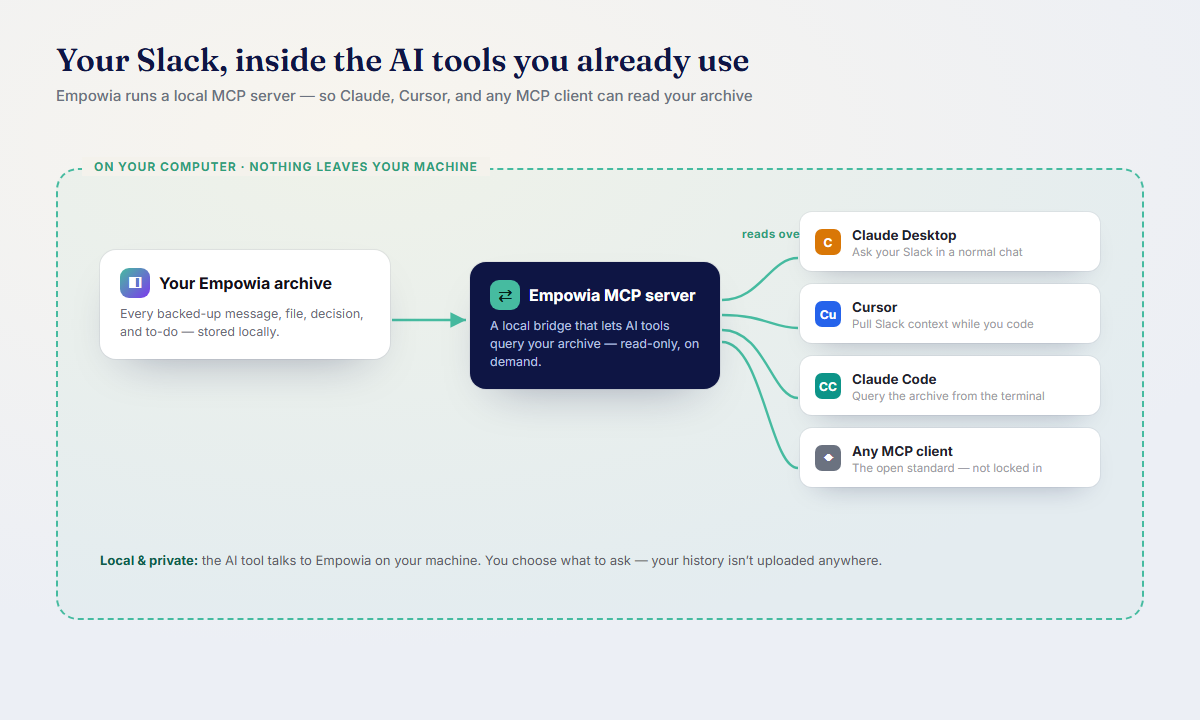
Empowia's optional MCP server closes that gap. It lets the AI clients you already use reach into your local, backed-up Slack — so you can explore your whole history from right where you're working, and put the tool's full reasoning to work on it: summarize a project, cross-reference two threads, chase a follow-up question. Your Slack stops being a place you have to visit and becomes context your favorite AI can draw on, on demand.
What is MCP, quickly
MCP stands for Model Context Protocol. Here's the plain-language version: it's a standard way for AI apps to connect to outside data and tools.
Before MCP, every AI client that wanted to talk to an external system needed its own custom integration, and every data source needed to build a different connector for each client. It was a mess of one-off plugins. MCP fixes that by giving everyone a shared language. A data source runs a small piece of software called an MCP server, and any MCP client (the AI app) can connect to it and use what it offers.
If it helps, think of MCP like a standard wall socket. The archive is the electricity. Empowia's MCP server is the socket on the wall. Claude Desktop, Cursor, Codex, and ChatGPT are the appliances you plug in. Because they all use the same shape of plug, you don't need a different adapter for each one.
The key point: MCP is what lets your Slack archive show up as something your AI tools can query, without any of them needing to know the first thing about how Empowia stores your data.
A couple of scenarios (hypothetical, but familiar)
Picture a developer deep in a Cursor session, trying to extend a feature nobody's touched in a while. She vaguely remembers the team debated the approach in Slack, but she has no idea which channel or when. Instead of tabbing away to hunt for it, she asks right there in Cursor:
"How did we implement rate limiting on the export endpoint last year, and were there any gotchas the team flagged?"
Because her backed-up Slack is connected over MCP, the assistant can pull the relevant threads and answer in context: the team went with a token-bucket approach, and someone warned about a race condition under burst traffic. She never left her editor, and the reasoning behind the original decision is right there next to the code she's editing.
Now picture someone else in Claude Desktop, drafting a project update for leadership. They know the important context lives in Slack, scattered across a dozen conversations. Rather than reconstructing it by hand, they let Claude reach into the connected archive:
"Summarize what changed on the billing migration this quarter, based on our Slack discussions, and note any open risks."
The draft comes back grounded in what the team actually said, not a vague guess. The archive did the remembering so they didn't have to.
Neither of these requires a new habit. The habit, using your AI tool, is already there. MCP just gives that tool a memory of your Slack.
How to connect Empowia over MCP
The exact clicks differ from one AI client to the next, and client menus change over time, so here's the honest, tool-agnostic version of the flow rather than a brittle screenshot walkthrough.
Back up your Slack first. The MCP server serves your local archive to the client, so you need an archive there first. If you haven't done this yet, download it free and back up your workspace. Empowia reuses your signed-in Slack session, so there are no admin approvals and no tokens to generate.
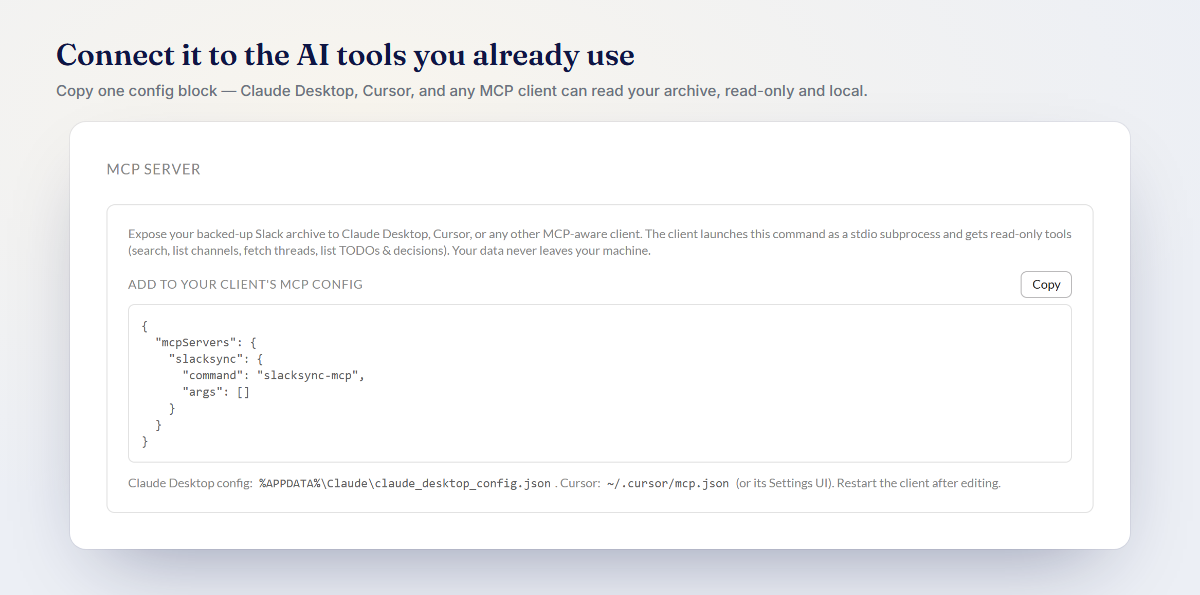
Enable Empowia's MCP server. In the Empowia app, turn on the optional MCP server. This starts a small local service on your machine that knows how to answer questions about your backed-up Slack. It runs on your computer; it doesn't ship your archive anywhere.
Add the server to your MCP-capable client. Open the AI client you want to use, such as Claude Desktop or Cursor, and add Empowia as an MCP server in its settings. Most clients have a spot for registering MCP servers; you point the client at the local server Empowia is running. Empowia will show you the connection details you need.
- Ask questions that pull from your Slack. Once the client sees the server, you just talk to your AI tool the way you normally would. When your question touches your Slack history, the client can reach through MCP to read the relevant parts of the archive and factor them into its answer.
That's the whole shape of it: back up, enable the server, connect a client, ask. You can connect more than one client to the same local archive, and you can disconnect any of them whenever you like.
Why local matters here
Connecting your Slack to external AI tools sounds like exactly the kind of thing that should make a privacy-minded person nervous. With Empowia, the design is built to keep you in control.
- The archive stays on your machine. Your backed-up Slack lives on your own computer. The MCP server doesn't upload it to a cloud, and there's no Empowia account or telemetry in the picture. The whole app is 100% local by default.
- The server runs locally too. Empowia's MCP server is a process on your machine. It's the thing your AI clients connect to, and it never leaves your computer.
- You choose which client connects. Nothing is reachable by a tool you didn't deliberately connect. You add the server to the clients you trust, and you can remove them anytime.
- You control what leaves. The only data that goes anywhere is what your chosen AI client sends to its own provider when you ask a question, which is the same thing that happens whenever you use that client. Empowia isn't a middleman in that exchange.
In other words, MCP lets you get the convenience of "my Slack, inside my AI tools" without handing your history to a third party to hold. The access is local, and it's yours to grant and revoke.
Give your AI tools a memory of your Slack
Your Slack history is one of the best records you have of how your team actually works, and it's most useful right where you're already thinking, inside Claude Desktop, Cursor, Codex, or ChatGPT. Empowia's optional MCP server bridges the two, while keeping the archive firmly on your own machine.
Want to explore your archive without leaving Empowia first? You can also ask your Slack anything and get answers with citations. And when you're ready to plug it into your AI tools, download it free. The free version is the full Empowia for Slack app capped at 20 conversations, and a one-time unlock removes the cap forever, with the code delivered by email and no account required. Prefer Mac or Linux? You can get notified when it's ready on the download page.
FAQ
What is MCP?
MCP (Model Context Protocol) is an open standard that lets AI apps connect to outside data and tools in a consistent way. Instead of every AI client inventing its own plugin format, MCP gives them a shared language. Empowia can run a small MCP server on your machine that makes your backed-up Slack archive available — read-only — to any MCP-capable client, like Claude Desktop or Cursor, so it can query it on your behalf.
Does connecting Slack over MCP send my data to the cloud?
No. Empowia's MCP server runs locally on your own machine, and your backed-up Slack archive stays on that machine. You decide which AI client is allowed to connect. The only thing that leaves your computer is whatever your chosen AI client sends to its own provider when you ask a question, just like using that client normally.
Which AI tools can connect to my Slack this way?
Any client that speaks MCP. That includes Claude Desktop, Cursor, Codex, ChatGPT, and a growing list of others. The Empowia app itself runs on Windows today, but the AI clients you connect to it may run on other operating systems.
Comments
Loading comments…