Everything you can do with Empowia for Slack
Install it, connect Slack, and turn your messages into searchable to-dos, decisions, and links — all on your own Windows PC. Nothing leaves your machine.
- Windows 10 / 11
- 100% local
- No account needed
Store or portable — same app, same features
There are two ways to get Empowia. The app and every feature are identical — only how you install it, how it updates, and where your data is stored differ.
| Microsoft Store | Portable (.zip) | |
|---|---|---|
| Install | One click from the Store | Download a .zip, unzip, run — no installer, no admin rights |
| First-run prompt | None (Microsoft-signed) | Windows SmartScreen once → More info → Run anyway |
| Updates | Automatic, in the background | Manual — download the new zip |
| Where data lives | A protected per-app location Windows manages | A data folder next to the .exe — moves with the folder |
| Best for | Most people — simplest, auto-updates | Locked-down or offline PCs, USB sticks, power users |
You can switch editions later by exporting a backup and restoring it. Buying the full version is the same for both: get an unlock code from our site and paste it in.
Install & first launch
Option A — Microsoft Store
- 1Open the Microsoft Store, search Empowia for Slack, and click Install.
- 2Launch it from the Start menu. There is no security warning, and it updates itself automatically.
Option B — Portable (from our site)
- 1Download Empowia-Portable.zip and extract it anywhere — a folder on your PC, or a USB drive.
- 2Double-click Empowia-for-Slack.exe.
- 3If Windows shows a SmartScreen notice, click More info → Run anyway (once — Windows remembers your choice).
- 4Everything the app creates lives in the data subfolder next to the .exe. Move the whole folder and your backup moves with it.
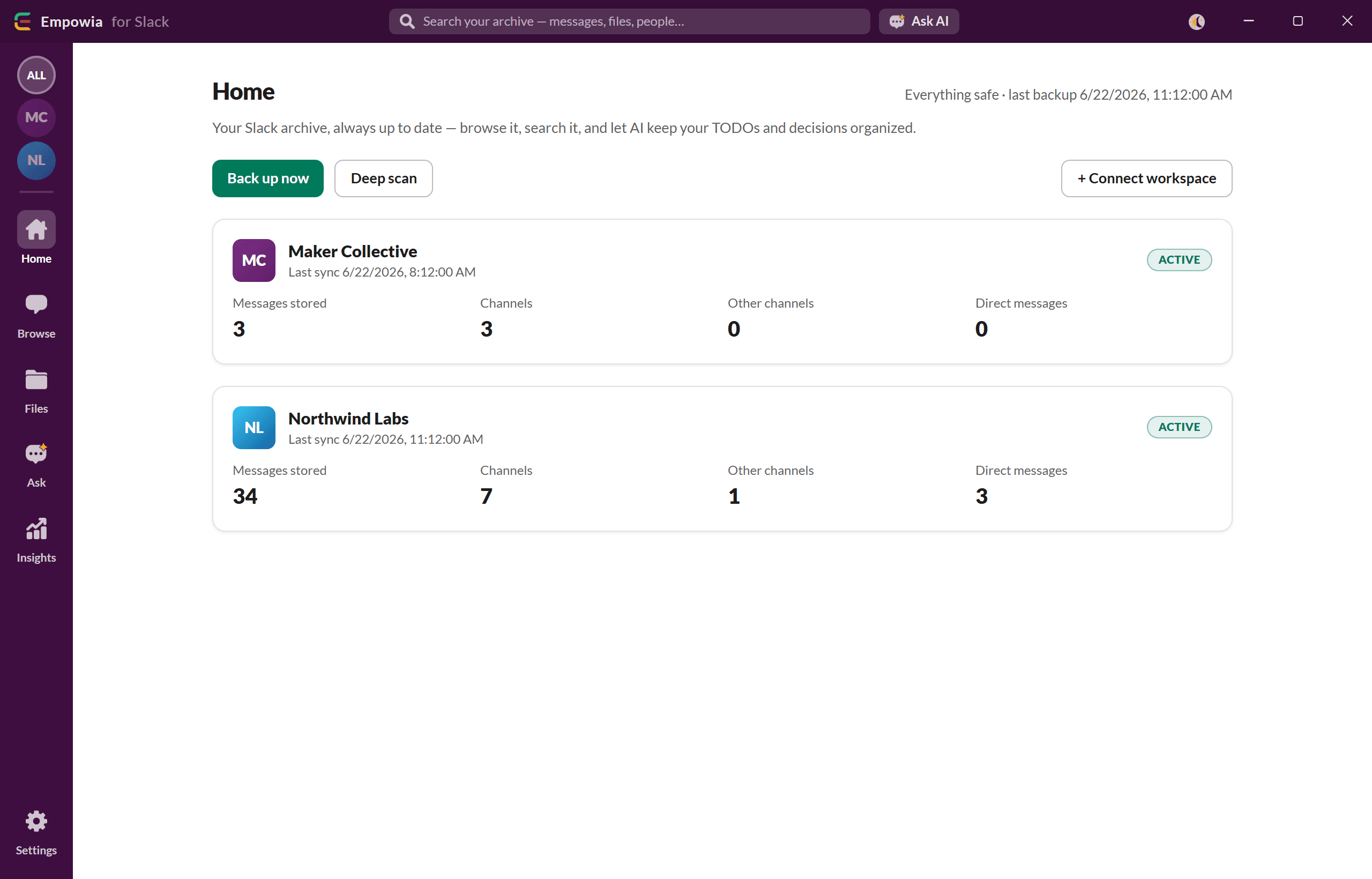
Either way, the first time you open Empowia you land on Home, where you connect your first Slack workspace.
Connect a Slack workspace
On the Home screen, click + Connect a workspace. Empowia tries three ways, in order:
- 1
Slack Desktop (automatic)
If the Slack desktop app is installed and signed in, Empowia reads its session for you — no password needed. If Slack Desktop is open, its files are locked, so you’ll be asked to quit Slack briefly and retry.
- 2
Browser sign-in
If the automatic path isn’t available, a sign-in window opens — log in to Slack as usual.
- 3
Manual paste (advanced)
Paste a token and cookie by hand. Hidden by default; most people never need it.
Repeat to connect more workspaces. Your Slack sign-in is stored securely on your PC, protected by Windows (DPAPI), and is used only to talk to Slack. Then click Back up now, or let the scheduler back up automatically in the background (Settings → General).
Free vs. full version
The free version has every feature but backs up at most 20 conversations — channels, DMs, and group DMs all count toward the 20.
Activate the full version — offline
To remove the limit, buy an unlock code from the site. Activation is offline — nothing is checked over the internet:
- 1Go to Home (or Settings → License).
- 2Paste your code into “Have a code? Paste it here” and click Activate.
- 3The badge changes to UNLIMITED and the cap is lifted.
Your unlock code is stored with your data, so it travels with a backup or a folder copy. A code isn’t tied to one machine — you can activate the same code after moving to a new computer.
Feature tour
Here’s what each part of the app does.
Home
Connect and manage workspaces, run Back up now or Deep scan (re-reads recent days to catch edits, reactions, and late thread replies).
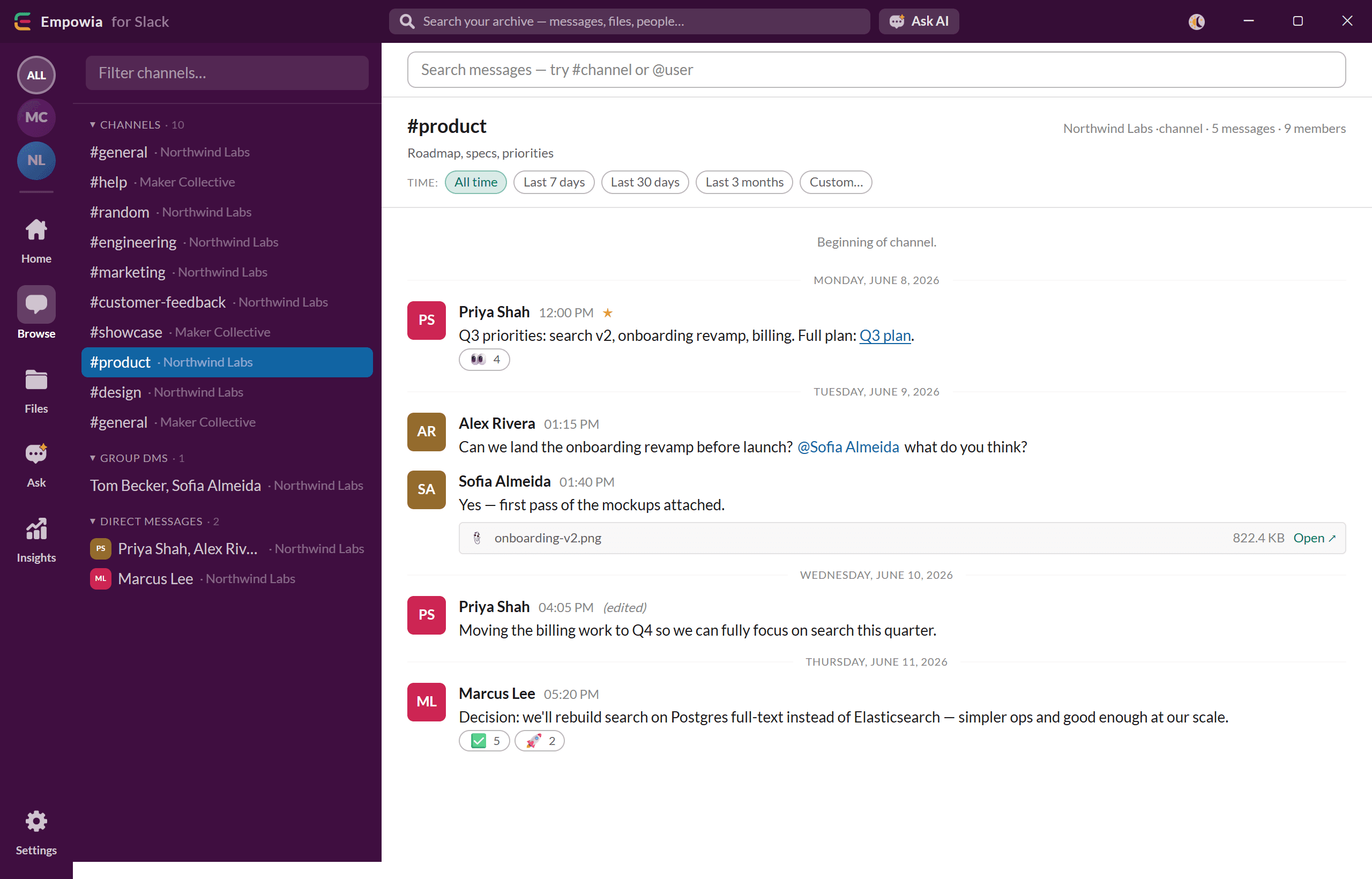
Browse
A Slack-style reader: channels on the left, messages on the right. Full-text search across everything — type #channel or @user to scope a search.
Files
A gallery of every attachment, filterable by type and workspace.
Ask
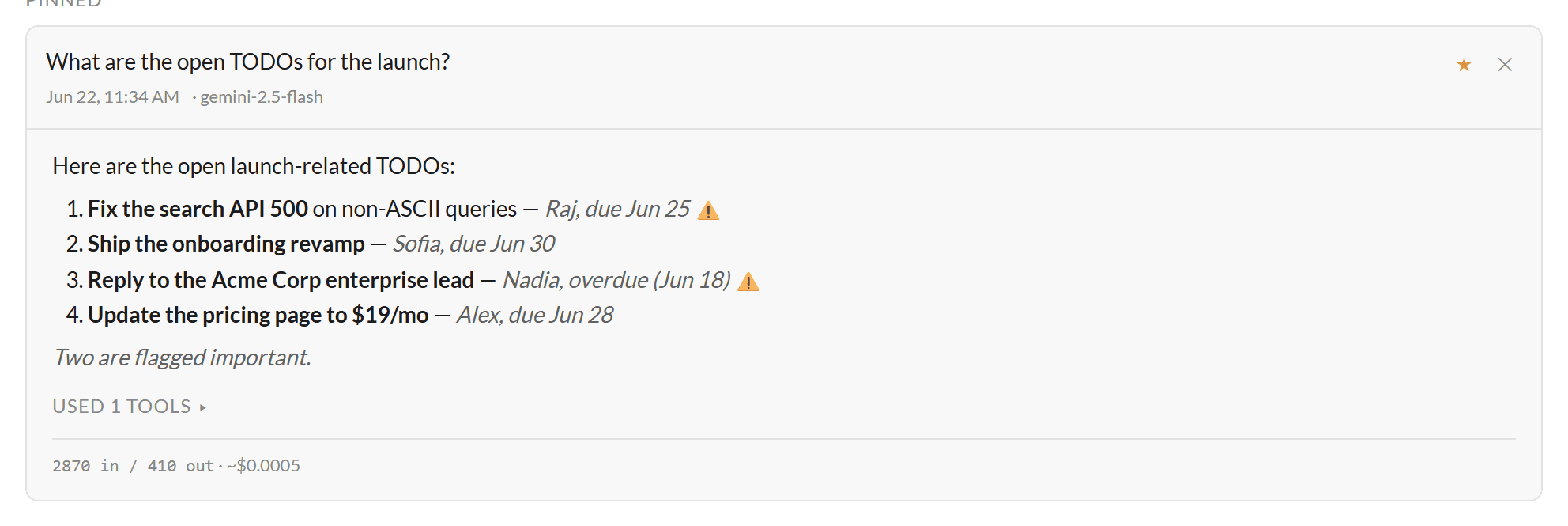
Ask a question in plain language and the AI answers from your archive, citing the source channels. Pin useful answers for later.
Insights
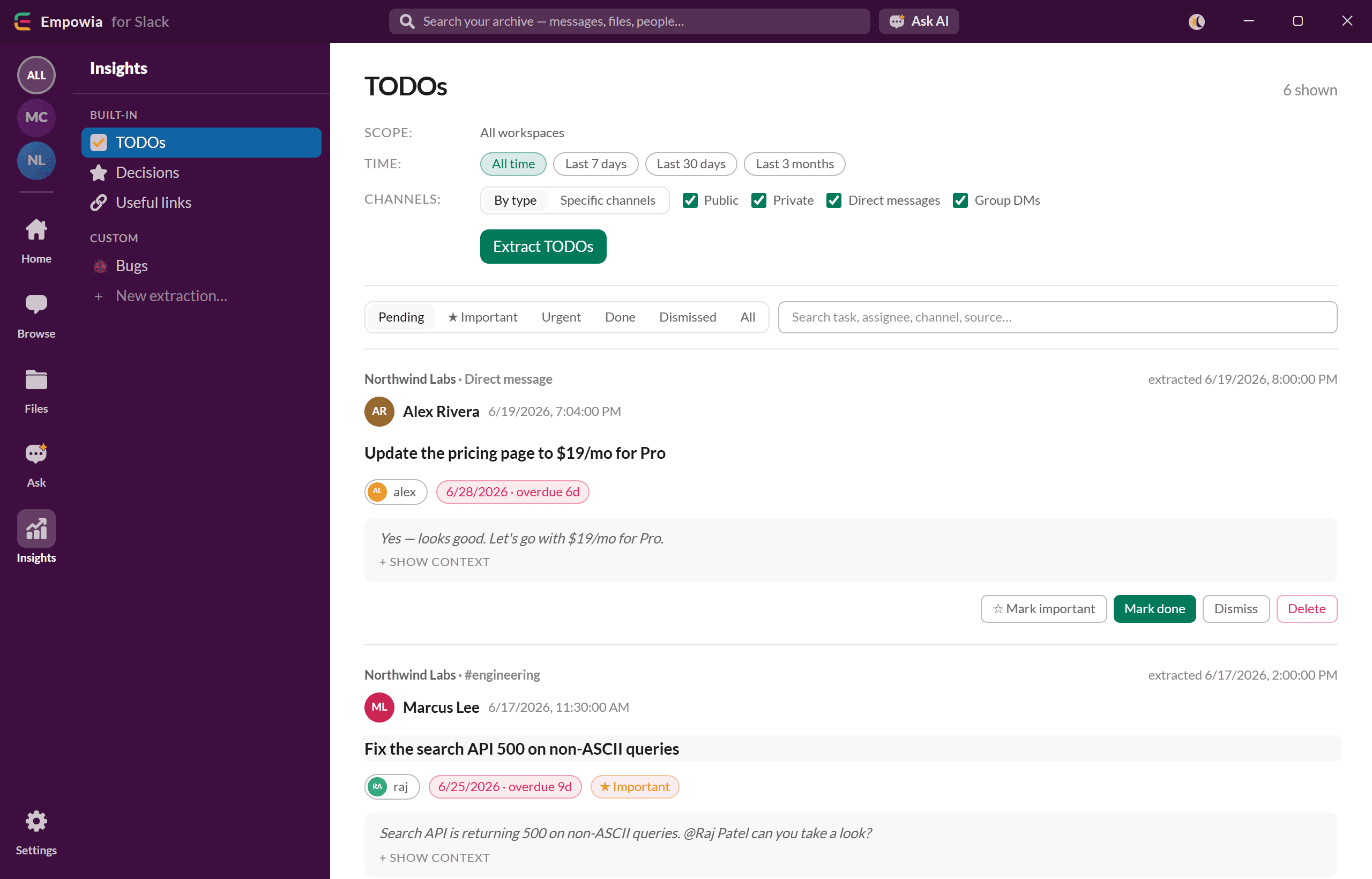
AI-extracted, structured views: To-dos (task, assignee, deadline, source), Decisions (with context), Useful links, and Custom extractions you define yourself.
Settings
License, appearance (theme + language), backup schedule, AI provider, auto-extraction, usage and cost, MCP server, and Back up & restore.
AI setup — bring your own key
Ask and extraction use your own provider key. In Settings → AI provider, pick a provider (Google Gemini, OpenAI, Anthropic, or OpenRouter), paste your API key, choose a model, and Test. Google Gemini has a free tier that covers personal use. You only ever pay your provider directly; Empowia shows your estimated usage under Settings → Usage.
Use your archive from Claude Desktop or Cursor (MCP)
Settings → MCP server gives you a config snippet that makes your backed-up archive available to any MCP-aware client (Claude Desktop, Cursor, …) as read-only tools — search, list channels, fetch threads, list to-dos and decisions. Your data never leaves your machine. Copy the snippet into your client’s config and restart it.
Where your data lives (and privacy)
Your data — message database, downloaded files, AI insights, settings, license, and your protected Slack sign-in — is kept separately from the app itself, so updating the app never touches your data.
Portable
A data folder right next to Empowia-for-Slack.exe. Easy to find, and it moves when you move the folder.
Microsoft Store
A protected per-app location Windows manages for you — not meant to be opened or copied by hand. To back it up or move it, use Export / Import.
Privacy
Everything is processed and stored locally. Empowia does not send your messages anywhere. The only network traffic is (a) to Slack, to fetch your backup, and (b) to your chosen AI provider — only for Ask and extraction, and only if you enable AI and add a key.
Back up, restore & move to a new computer
Settings → Back up & restore exports and restores a complete copy of everything.
Make a backup
Click Export backup. Empowia writes a single .zip (messages, files, insights, settings) to your Downloads folder. Keep it as a safety copy or carry it to another computer.
Restore a backup
Click Choose backup… and pick a .zip. The restore is staged, then applied when Empowia restarts — click Restart now to finish. Your current data is kept as a rollback in case you change your mind.
Moving to a new computer
Recommended, any edition: Export backup on the old PC, copy the one .zip to the new PC, and Restore it there. Portable → portable shortcut: copy the whole app folder (it already includes data) to the new PC or a USB drive.
Moving to a new computer
For security, your Slack sign-in is locked to the original Windows account, so on a new computer you’ll sign in to Slack once more (your backed-up messages are unaffected). Re-syncing only fetches messages still on Slack — expired messages are recovered only from your backup, so always move the data, don’t rely on re-syncing.
Updating the app
Microsoft Store
Updates install automatically in the background — nothing to do.
Portable (from our site)
- 1Quit Empowia.
- 2Download the new Empowia-Portable.zip.
- 3Extract the new files over the old folder — keep your data folder (the zip contains no data, so yours is left untouched).
- 4Open the new Empowia-for-Slack.exe. Your database is upgraded automatically on first launch; all your messages, license, and sign-in are preserved.
Don’t unzip fresh
Do not delete the whole folder and unzip fresh — that would delete your data. If unsure, Export a backup first.
Empowia does not check for updates on its own, in keeping with the “never phones home” promise. Find the latest download on the site, or open Settings → Back up & restore → Get the latest version.
Troubleshooting & FAQ
“Windows protected your PC” when I open the app.
This only affects the portable download (it isn’t code-signed). Click More info → Run anyway (once — Windows remembers). The Microsoft Store edition is Microsoft-signed and never shows this.
Connecting Slack said it couldn’t read my session, or asked me to quit Slack.
Slack Desktop had its files open. Quit Slack Desktop and retry, or use the browser sign-in option.
I moved to a new computer and my workspaces are disconnected.
Expected — your sign-in doesn’t transfer, for security. Reconnect Slack once; your backed-up data is intact.
Does restoring overwrite my current data?
Yes — restore replaces the current archive. Your previous data is kept as a rollback in the data folder in case you change your mind.
Where is my data, and can I move it?
Portable keeps it in the data folder next to the .exe (move the folder to relocate it). The Store edition keeps it in a Windows-managed location — use Export / Import to back it up or move it.
My AI answers are empty or show an error.
Check Settings → AI provider: AI must be enabled with a valid key and model (use Test). Free-tier keys work for personal use.
Is my data sent anywhere?
No. Everything is processed and stored on your computer; the only network traffic is to Slack (to fetch your backup) and to your AI provider (only if you enable AI).
Ready to start?
Download Empowia for Slack free — every feature, up to 20 conversations. No account, no cloud.
Empowia for Slack is Windows-only. Questions not covered here? Contact support.