How to Preview HTML Changes in Real Time
Stop the save-switch-refresh loop. How live preview shows HTML changes as you type, lets you click the preview to find the matching code, and helps you check the page at phone width.
The maker behind Empowia
Quick answer
To preview HTML changes in real time, open the file in an editor with a built-in live preview so the rendered page updates as you type — no saving, no switching windows, no refreshing. A two-way editor also lets you click an element in the preview to jump straight to the matching code. For a single .html file you don't need a build step or a local server; a browser-based visual editor renders the page live as you edit.
Key takeaways
- Live preview removes the edit-save-switch-refresh loop — the rendered page updates as you type, so you see each change the moment you make it, with no build step and no manual refresh.
- A two-way editor keeps the visual page and the code in sync. HTML Tweak's "click to locate" highlights the exact code behind any element you click in the preview, so you stop hunting through markup.
- For a single .html file you don't need a local dev server or a hot-reload setup — a browser-based visual editor renders the real page as you edit it.
- To check a layout on phone or tablet widths, view the live page at a narrow window or in your browser's responsive mode; a page that looks fine on a laptop can still break on mobile.
- HTML Tweak is a free, no-sign-up editor that runs in the browser and as a single offline file, with visual and code side by side and in sync — but it edits one .html page, not a multi-file React or Next project.
Change the padding on one button. Save. Flip to the browser, hit refresh, lean in to see if it worked. It didn't — so nudge the number, save, flip, refresh. Again. You can burn half a morning on that four-beat shuffle and come away with a button that's still two pixels off.
The fix is old news — live preview — and I won't pretend I invented it; plenty of editors do it, and I compared the free HTML editors elsewhere. So this isn't a pitch for one tool. It's about why that little shuffle costs so much more than the seconds it seems to.
the loop isn't slow so much as sticky
The refresh dance doesn't just cost you seconds. It costs the thread you were holding.
Every time you alt-tab and reload, you lose your place — the scroll position, the half-formed idea of what to try next, the exact thing your eye was on. Feedback that shows up four steps later stops feeling connected to the change that caused it. So you stop experimenting. Trying five quick versions of a colour should be nearly free. When each one costs a save-switch-refresh, you talk yourself out of four and settle for the first.
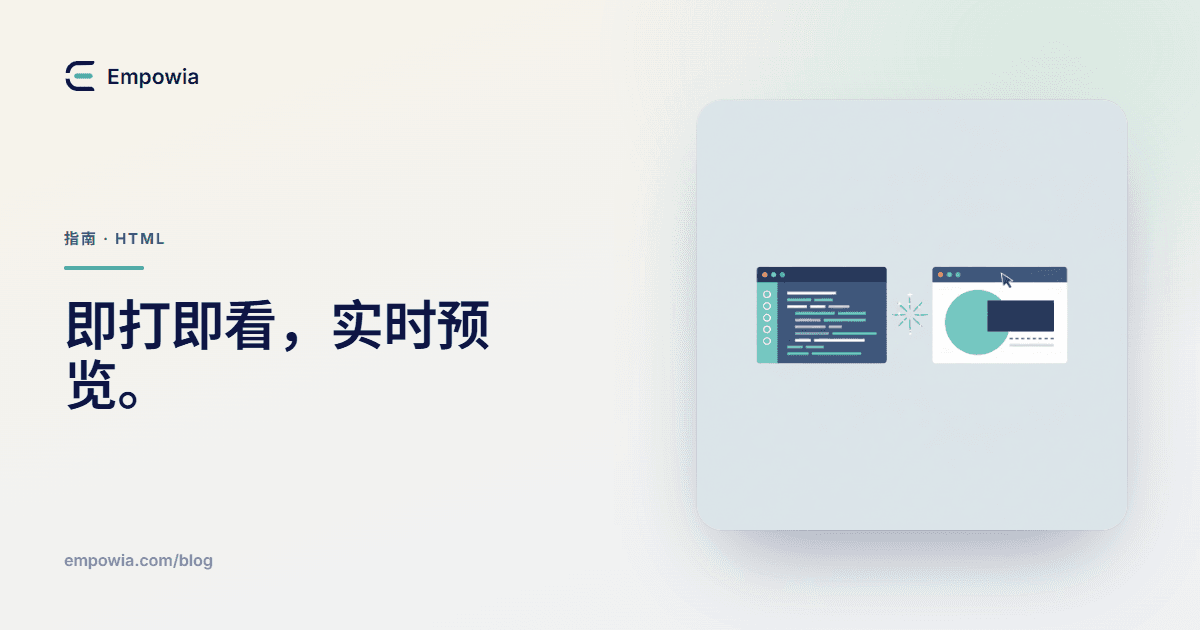
Live preview closes that gap to nothing. You type, the rendered page moves. Change and result sit right next to each other, no lag between them. And for a plain .html file there's no machinery underneath — no dev server to start, no build to run, no watch task humming in a terminal. The editor renders the real page in the browser and repaints it on every keystroke.
Framework projects are a different animal. A React or Next app genuinely needs a dev server with hot reload, and that's the right tool for that job. But you shouldn't have to spin one up just to see a heading change on a single page.
the live preview that forgets everything on refresh
One warning here, because it catches almost everyone at least once.
Open a page in Chrome, right-click, choose Inspect, and you can edit the HTML right there in DevTools and watch it change live. It feels like the answer. It isn't. Those edits live only in that one browser tab — hit refresh and they're gone, and they never touch the file on your disk. DevTools is a live preview you can't keep. It's brilliant for poking at a page to see what a change would look like, and useless for making that change stick. If you want the edit saved, you need an editor that writes back to the file, not a browser panel that throws your work away on reload.
click the thing, land on its code
Half the loop is seeing the change. The other half is finding where to make it.
You know the feeling. The preview looks wrong — that heading's the wrong size — and now you're scrolling the markup, hunting for the right tag among forty that all look alike. That hunt is its own tax, and it's a quiet one.
A two-way editor kills it. Click the element in the preview, and the code behind it lights up. HTML Tweak calls this click to locate — click the heading on the page, and the editor jumps to its exact line and highlights it. It runs both directions. Type in the code and the preview updates; click in the preview and the code follows. The visual page and the source sit side by side, always describing the same thing. And if side-by-side isn't your preference, you can stack them, or hide one and work in just the code or just the page — whatever the change in front of you needs.
That's the part that ends most of the squinting. You're no longer translating between "what looks off" and "where in the file it lives." They're the same click.
the same page, at phone width
A page can look finished on your laptop and fall to pieces on a phone.
This is the one the refresh loop hides worst, because you're testing at exactly one size — the size of the screen you happen to be sitting at. Then the page goes out, and on a narrow screen the nav wraps, a heading runs off the edge, two columns that were meant to sit side by side pile up into a mess.
Since a live preview is the real page in a real browser, you can check the small sizes with nothing extra to install. Drag the window narrow and watch what reflows. Or open your browser's responsive mode — in Chrome and Edge it's the device toolbar inside DevTools — and step through phone, tablet, and desktop widths. What you're looking for is text that overflows its box, buttons that wrap onto two lines, and anything that spills past the edge of the screen. Catch it here, at your desk, instead of from a screenshot a client sends you three days later.
six steps to a live preview
Here's the whole run, end to end. If opening the file at all is the part you're unsure about, I wrote up the ways to edit an HTML file separately.
- Open your
.htmlfile in a visual editor that shows the page and the code together. In HTML Tweak you open it straight from your computer — nothing uploads. - Put the two panes side by side so you can see both at once.
- Start editing. Change the words on the page, or edit a tag in the code — either side updates the other live, as you type, with no save-and-refresh in between.
- Click anything in the preview you want to change, and let click to locate drop you on its code.
- Check it narrow. Pull the window in, or use your browser's responsive mode, to make sure the layout holds up on a phone.
- Save. In Chrome or Edge the changes write straight back to your original file; in other browsers you get an edited copy downloaded. Either way, no build step and no sign-up.
small things that make the preview lie to you
A live preview mirrors your file closely — but not perfectly. A handful of things can make it show you something that isn't quite true, worth knowing before one of them costs you an hour.
- Old cached CSS or images. If your page pulls in a stylesheet or a picture, the browser sometimes clings to an old copy. Your HTML updates live, but a stale background image can hang around. A hard refresh — Ctrl+Shift+R — on the underlying page clears it.
- Testing at one width forever. I said it above, and it's still the most common miss. Perfect on the laptop, broken on the phone. Make the narrow check a habit, not an afterthought.
- Mixing up the preview and the saved file. The live view reflects your edits the instant you type them. The file on disk only changes when you save. Close without saving and the page keeps its old content, live preview or not.
- Reaching for a build tool you don't need. One
.htmlfile doesn't want a dev server, a bundler, or a live-reload plugin. That's a pile of setup to watch a colour change. Keep it for the real projects.
Got a page open right now and a change you keep refreshing to check? Edit it with a live preview and watch it move while you type — the refresh key can have the afternoon off.
FAQ
How do I see HTML changes as I type?
Open the file in an editor that has a built-in live preview. As you edit the code or the page, the rendered result updates on the spot — no saving, no switching to the browser, no refresh. For a single .html file this needs no build step or local server; a browser-based visual editor renders the real page live while you work, so every change shows immediately beside your code.
Is there an HTML editor with live preview?
Yes, several. Code editors like VS Code add live preview through an extension, and browser-based visual editors show the page next to the code by default. HTML Tweak is a free one that opens your existing .html file, puts the visual page and the code side by side and keeps them in sync, and needs no sign-up — you edit and the preview updates as you type.
Why do I have to keep refreshing to see my HTML changes?
Because opening a file in a browser shows a static snapshot — the browser doesn't watch the file, so it only re-reads it when you refresh. If you edit the file in a separate program, save, and switch back, you have to refresh to load the new version. An editor with live preview removes that step: it renders the page as you type, so there's nothing to refresh.
Can I preview HTML changes without a local server or build step?
Yes. For a single .html file you don't need a dev server, a bundler, or hot-reload tooling — those belong to framework projects. A browser-based visual editor opens the file and renders it live as you edit, entirely in the browser. HTML Tweak works this way: one page, no build, and it can save changes straight back to your file in Chrome or Edge.
How do I preview an HTML page on mobile?
Because your live preview is the real page in a real browser, you can check phone and tablet widths without extra software. Narrow the browser window, or open your browser's responsive mode and pick a width. Look for text that overflows, buttons that wrap, and images that spill past the screen. A page that looks right on a laptop can still break at a smaller width, so check before you publish.
Comments
Loading comments…